Managing Users
Everything you need to know about managing users including inviting users and removing users from your organization.
For each plan there is a limited number of users included in the price:
- 7-Day Data Pass and State plans have 1 user included in the price.
- Country plans have 3 users included in the price.
State and Country plans can add users beyond the included seats at the per-user prices shown on the Pricing page. If you need more than one user with a 7-Day Data Pass, contact the Support Portal before purchasing. Regularly check User Management so only the expected users have access.
Inviting (adding) Users
Organisation owners and admins can invite and remove users through the Your Organization section in MarketBuddy.
To access the Organization section, open the User Menu by clicking your avatar on the right in the top navigation bar.
Then click the Your Organization item in the menu that slides out.

Once in the Organization management section use the Invite Users tab to invite users to the Organization. Enter the user's name and email address into the form and click the Send Invite button.
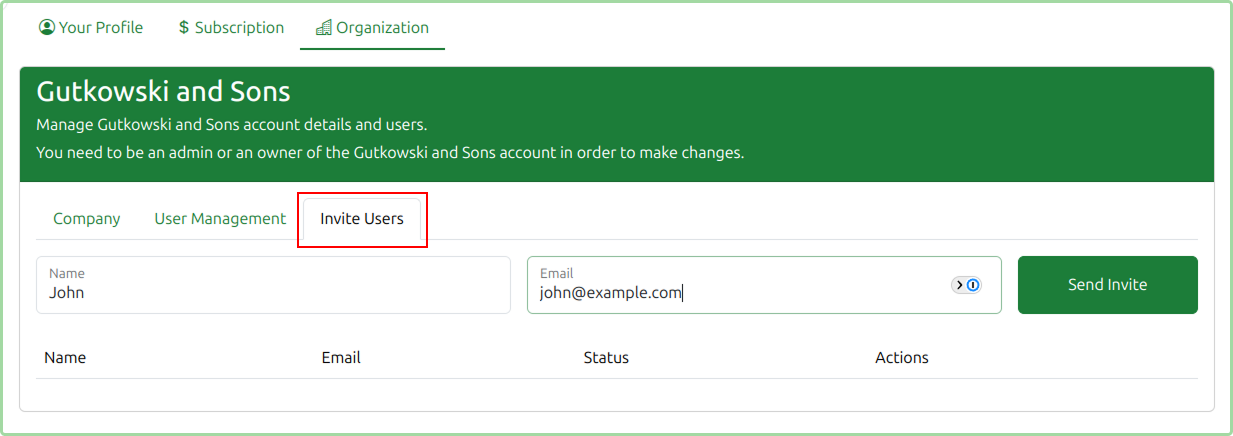
The invitation will then go into the Pending state. The invitee will receive an email that they can accept.

You can also use the Actions to either Resend Invite or Cancel Invite.
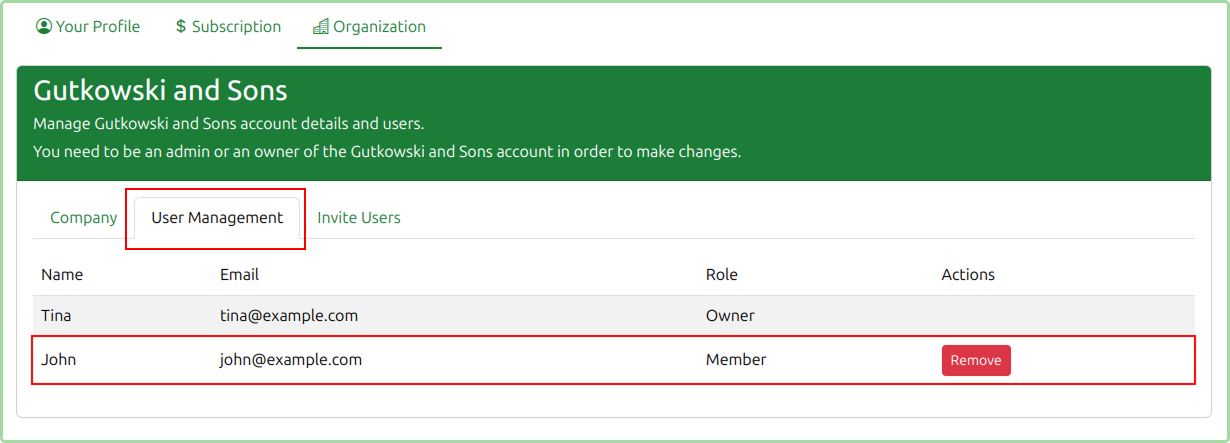
Once the user has accepted the invite, the user is added to the Organization. This can be confirmed under the User Management section.
Removing Users
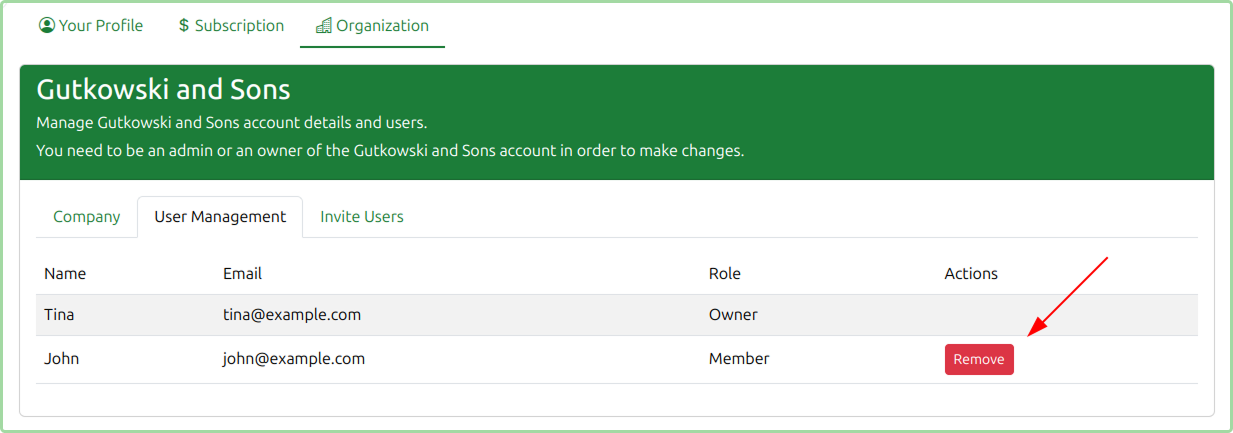
At any given point in time you can remove users from your organization by simply clicking the Remove button for the given user in the Actions column.