Filter the listings on the MarketBuddy Market page
Each Filter on the Market page narrows the listings that load, and the figures and the Listings table change at once.
The Filters are the row of controls below the heading of the Market page. A Filter is a condition, such as a price range, that decides which listings the page loads.
A Filter applies as soon as you change it. There is no button to confirm. When you scroll down, the row stays at the top of the screen.
The Filters
| Filter | What it does | Starts as |
|---|---|---|
| Type | Loads only the listings of the property types you tick. | Any |
| Price | Loads only the listings with a rent a year between Min and Max. | Any |
| Floor area | Loads only the listings with a floor area between Min and Max, in square metres. | Any |
| Include leased | Adds the Off market listings that left the market within the period you pick. | No |
| Surrounding suburbs | Adds the listings of the suburbs around the suburb you searched. Not there for an address search. | Off |
| More, Land area | Loads only the listings with a land area between Min and Max, in square metres. | Any |
| More, Multi-listings | Adds the listings that advertise more than one property and give the floor area as a range. | Off |
| More, Remove outliers | Leaves out each listing whose rate per m² is far outside the middle range of the listings. | On |
| Within | For an address search only: sets the radius to 250 m, 500 m, 1 km, 2 km, or 5 km. | 1 km |
A Filter that is on shows its value in green, such as Type Offices or Floor area 50 m² to 100 m². More shows the number of its Filters that you changed.
To put every Filter back to its start, click Reset.
Type
- Click Type.
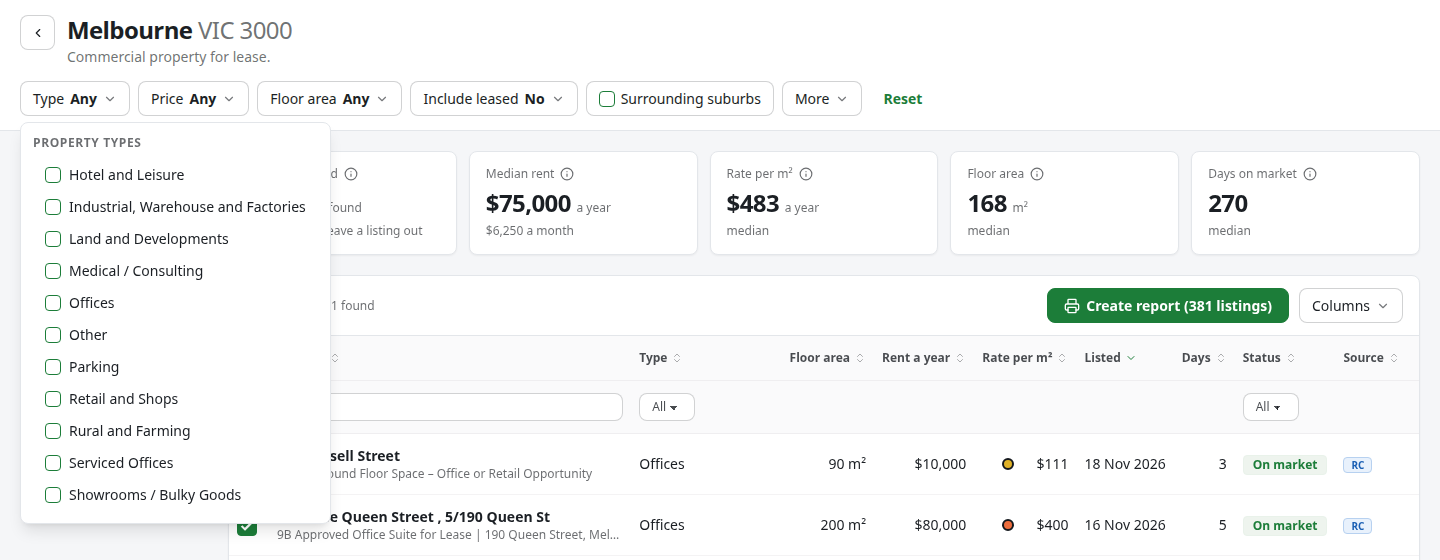
- Tick one or more of the property types.
The property types are Hotel and Leisure, Industrial, Warehouse and Factories, Land and Developments, Medical / Consulting, Offices, Other, Parking, Retail and Shops, Rural and Farming, Serviced Offices, and Showrooms / Bulky Goods.
Price, Floor area, and Land area
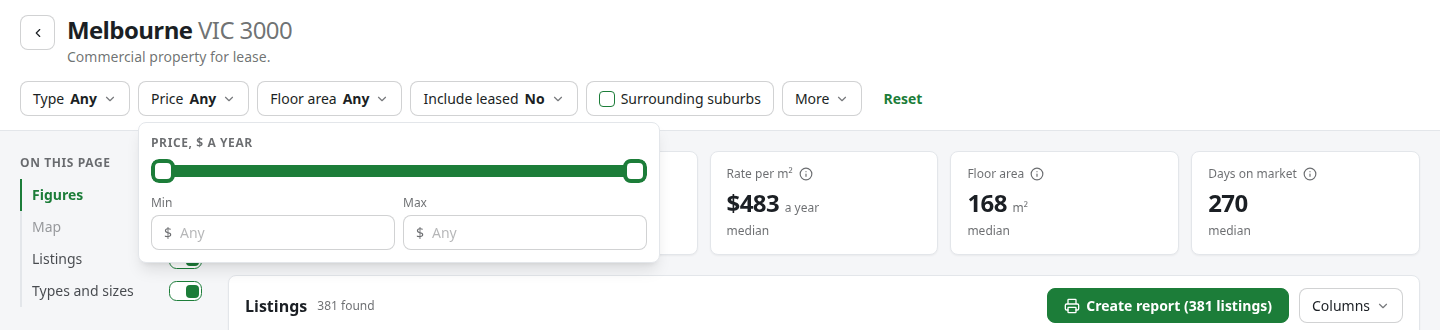
These three Filters work the same way. Price is in dollars a year. Floor area and Land area are in square metres. Land area is under More.
- Click the Filter.
- Drag a handle of the slider, or type a number in the Min box or the Max box.
Leave a box empty to set no limit on that side. For example, type 50 in Max and leave Min empty to load the listings up to 50 m².
Include leased
At the start, the Market page loads only the On market listings. Include leased adds the listings that left the market.
- Click Include leased.
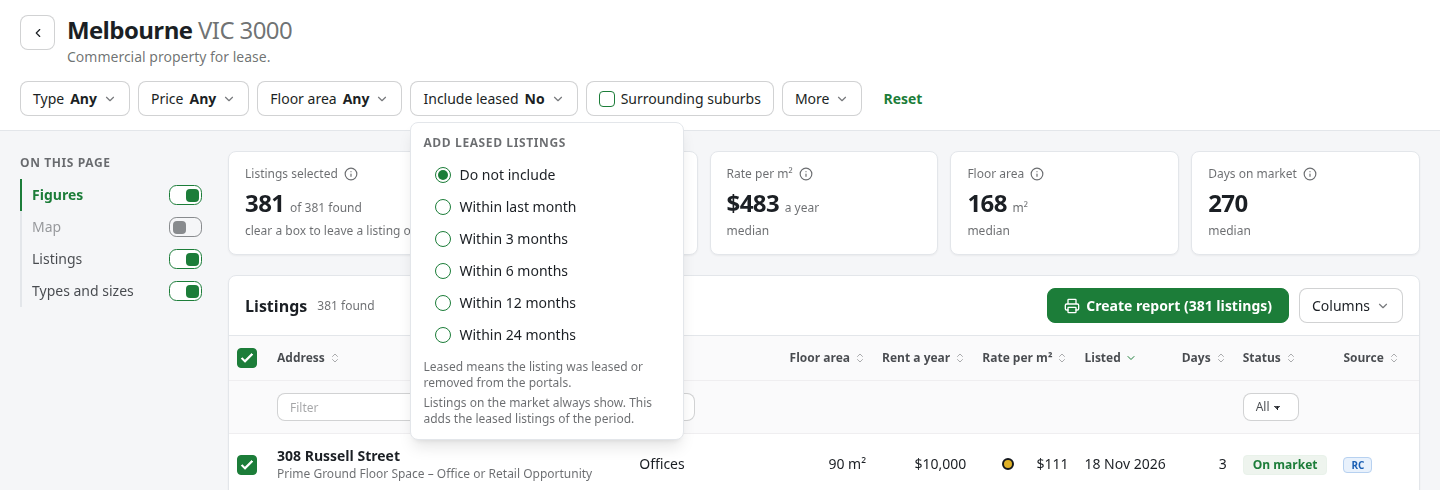
- Click Within last month, Within 3 months, Within 6 months, Within 12 months, or Within 24 months.
To take them out again, click Do not include.
The On market listings always show. These added listings have the status Off market in the Listings table, and a pin with a dashed edge on the map. Off market means that the portals no longer show the listing. MarketBuddy does not know whether the property was leased or the listing was withdrawn.
More
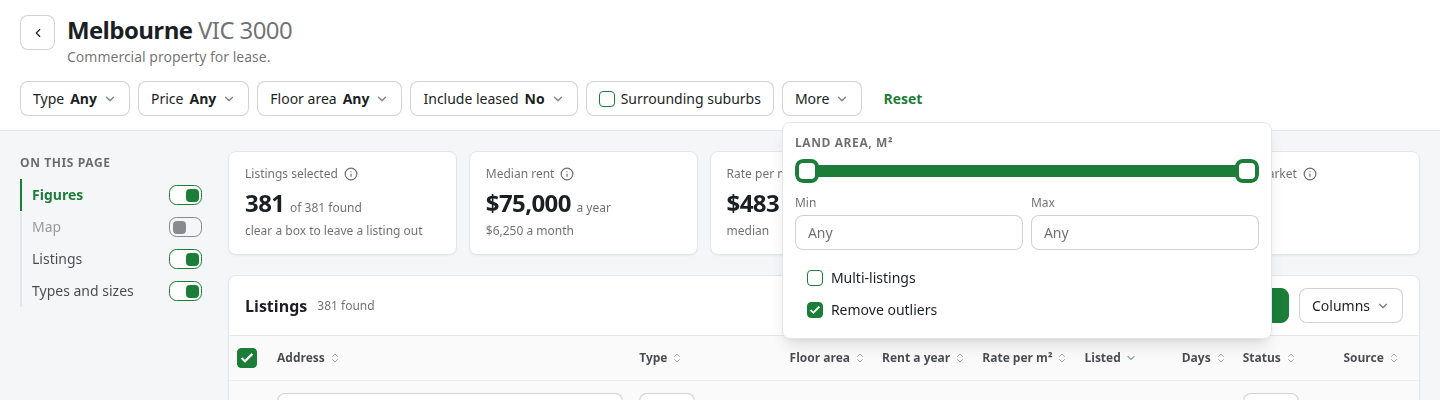
More holds three Filters: Land area, Multi-listings, and Remove outliers.
- Multi-listings. Some listings advertise more than one property, with a floor area such as "100 to 250 m²". The Market page leaves them out at the start. Tick Multi-listings to add them.
- Remove outliers. An Outlier is a listing whose rate per m² is far outside the middle range of the listings it is compared with. The Market page leaves the Outliers out at the start. Clear Remove outliers to load them too.
Example: small retail listings in Melbourne
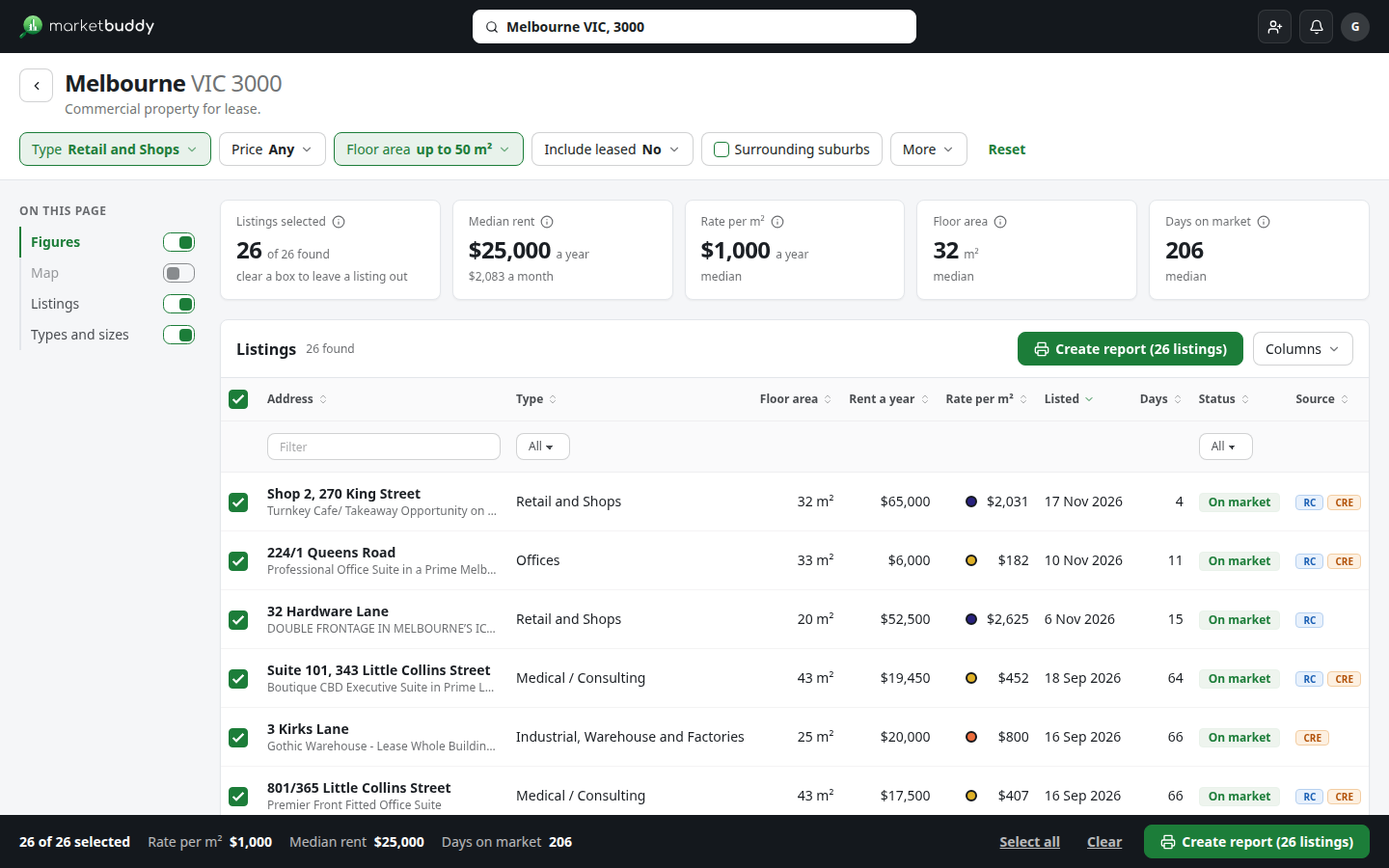
This example finds the retail listings up to 50 m² in Melbourne VIC 3000.
- Search for Melbourne VIC 3000.
- Click Type, then tick Retail and Shops.
- Click Floor area, then type 50 in the Max box.
The row now shows Type Retail and Shops and Floor area up to 50 m². The figures and the Listings table describe only the listings that match. On the day of this screenshot, 26 listings matched.
When no listing matches
When no listing matches, the page shows "No listings match these filters". Widen a range, turn on Surrounding suburbs, or pick a larger radius. To start again, click Reset filters.
Filters and Column filters
A Filter decides which listings the page loads. A Column filter, under a heading of the Listings table, only hides rows that are already loaded. See Column filters.