Select listings and create a MarketBuddy Report
Clear the listings you do not want, then create a Report of the Selection to print or to save as a PDF.
The Selection is the set of listings that the figures, the map, the charts, and the Report describe. Every listing of a Market page starts selected. You take a listing out of the Selection when you clear its checkbox.
A Report is a page made from the Selection. You print it or save it as a PDF, for example to give a landlord or a tenant the comparable listings for a market review.
Example: office listings in Malvern
This example makes a Report of the office listings between 50 m² and 100 m² in Malvern VIC 3144, with the listings that left the market in the last 6 months.
- Search for Malvern VIC 3144.
- Click Type, then tick Offices.
- Click Floor area. Type 50 in the Min box and 100 in the Max box.
- Click Include leased, then click Within 6 months.
-
Scroll to the Listings table. Each row has a ticked checkbox on its left.
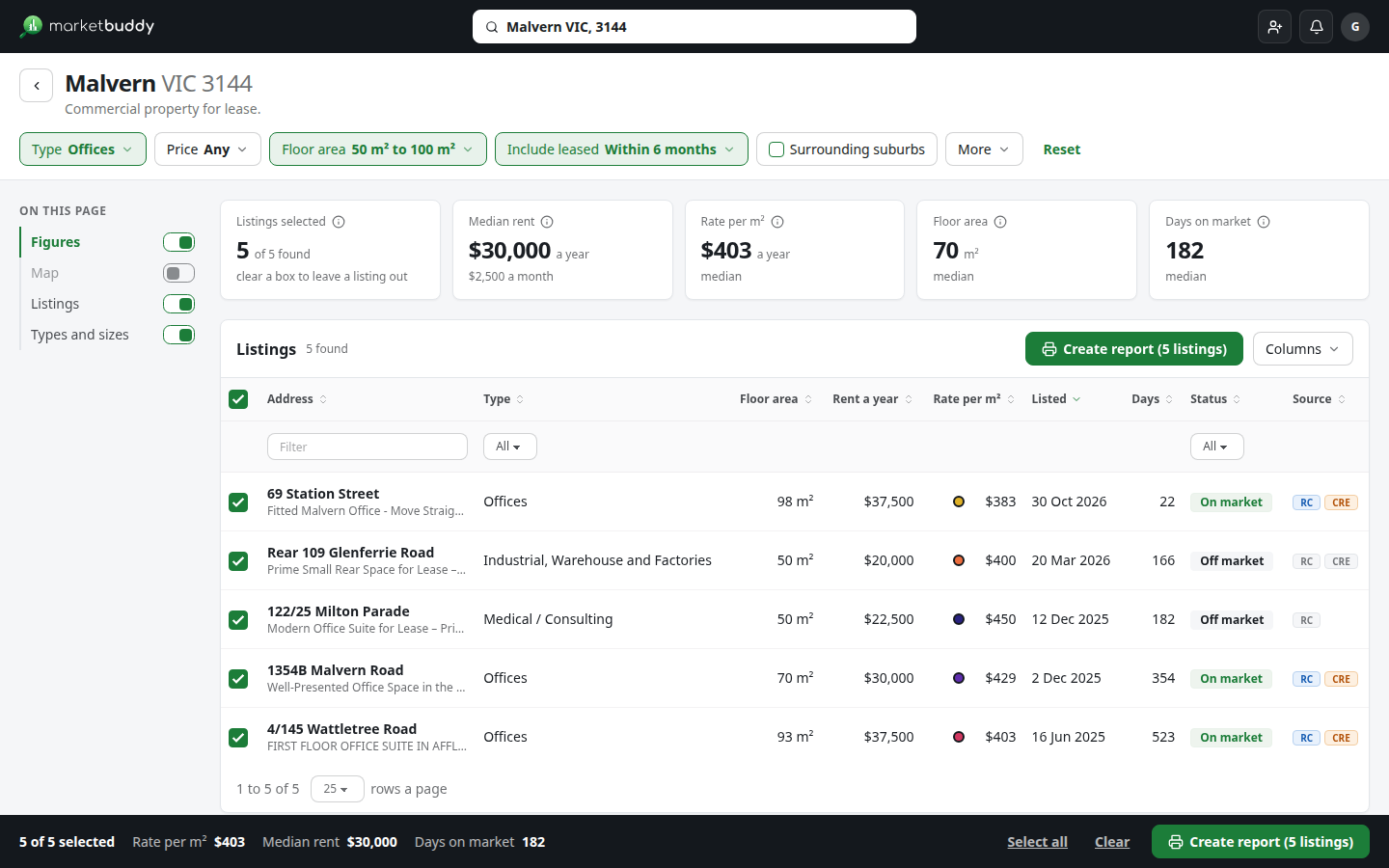
-
Clear the checkbox of each listing that you do not want in the Report. The row turns grey. The figures, the map, and the charts change to describe only the listings that stay selected.
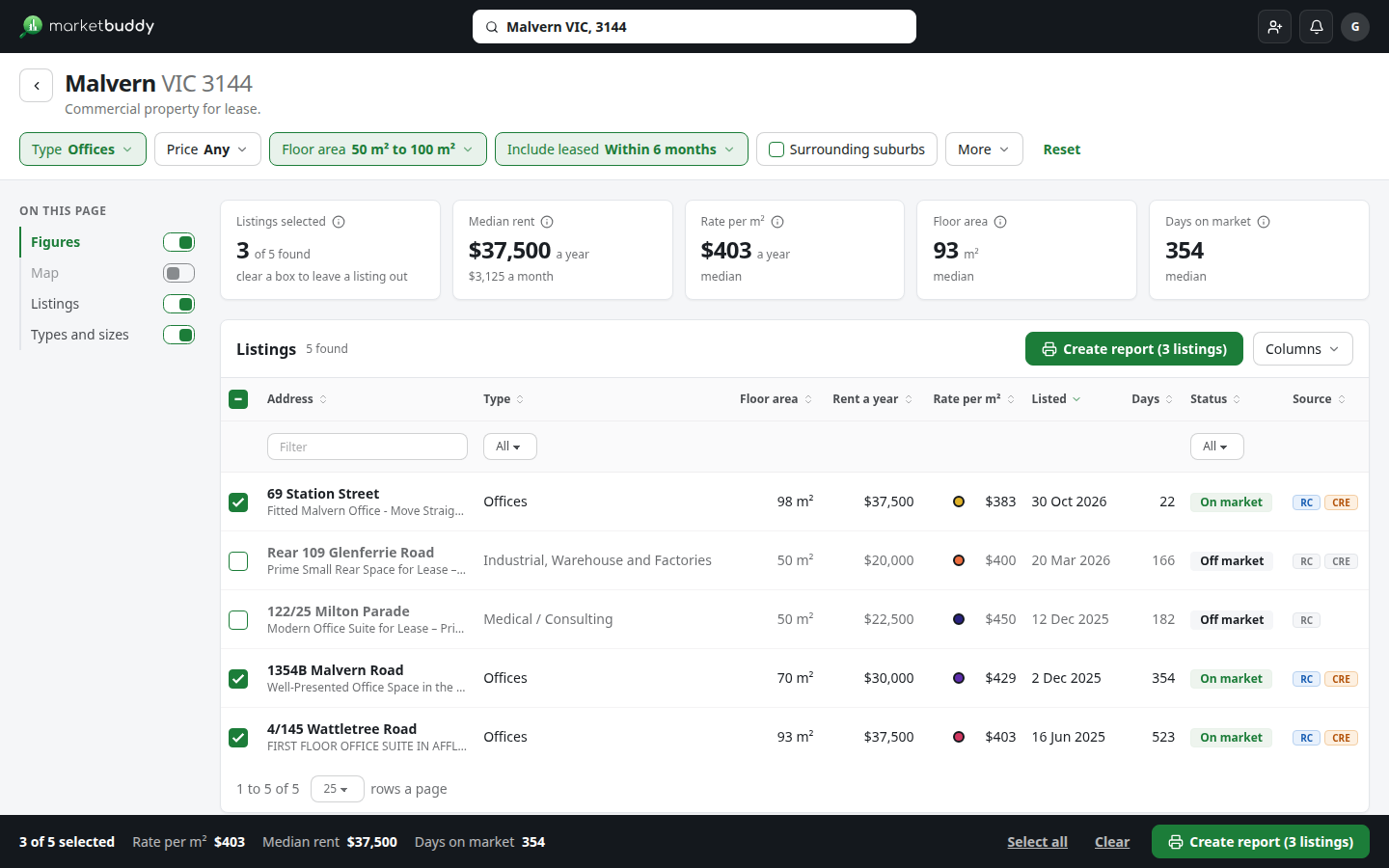
-
Click Create report (3 listings). The button is in the heading of the Listings table and in the Selection bar. The number in the button is the number of selected listings.
The Report opens in a new browser tab.
The Selection bar
The dark bar at the bottom of the screen is the Selection bar. It stays in view while you scroll.
| Part | What it shows or does |
|---|---|
| 3 of 5 selected | The number of selected listings, and the number of listings loaded. |
| Rate per m², Median rent, Days on market | The medians of the selected listings. |
| Select all | Selects every listing. |
| Clear | Clears every listing. |
| Create report (N listings) | Opens the Report of the selected listings. The button is off when no listing is selected. |
The checkbox in the heading row of the table also selects or clears every listing.
Column filters
A Column filter hides the rows of the Listings table that do not match a value. The Listings table has three:
- Under Address, type part of an address.
- Under Type, pick a property type.
- Under Status, pick On market or Off market.
A Column filter does not change the Selection. A listing that a Column filter hides stays selected, and the Report still includes it.
While a Column filter is on:
- A line above the table says how many rows match, such as "3 of 5 rows match the column filters. Select all and Clear act on these 3."
- Select all and Clear in the Selection bar change to Select 3 matching and Clear 3 matching. They act only on the rows that show.
- Clear column filters, on the right of that line, shows every row again.
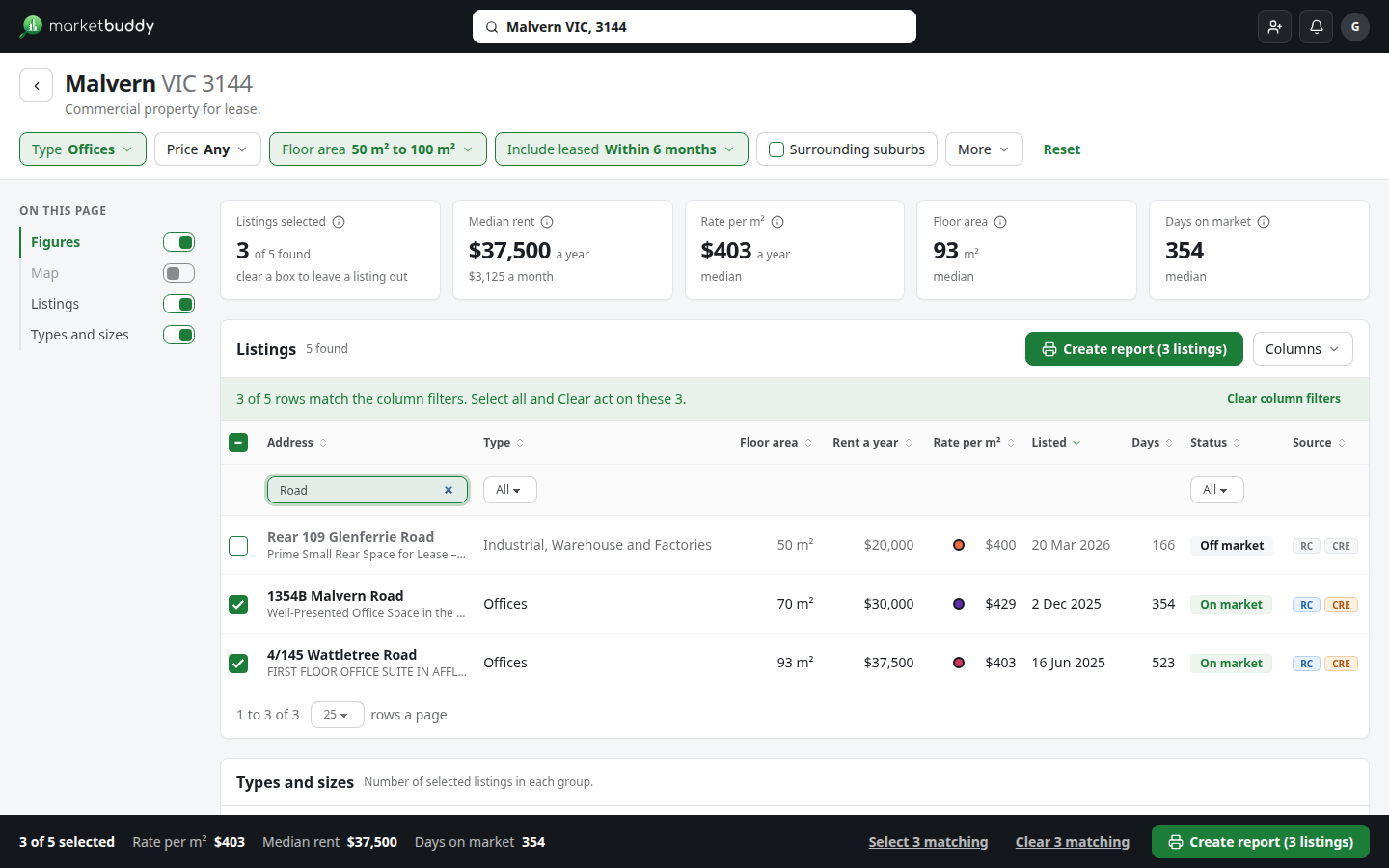
Use a Column filter to work through a long list. For example, to take every Off market listing out of the Selection, pick Off market under Status, click the button that starts with Clear in the Selection bar, then click Clear column filters.
To change which listings the page loads, use a Filter.
What the Report shows
The Report has the title Market Listings Report. It shows the Selection as the Market page showed it when you created the Report.
| Part | What it shows |
|---|---|
| Location | The suburb, or the address and its radius. |
| Report date | The date you created the Report. |
| Filters | The property types, the price range, the floor area range, the land area range, and Multi-listings, for each of these that you set. |
| Overview | The number of listings, the median rent a year, the median rent a month, the median rate per m², the median floor area, and the median days on market. |
| Listings | One row for each selected listing, with the columns of the Listings table. Each Source link opens the listing on its portal. |
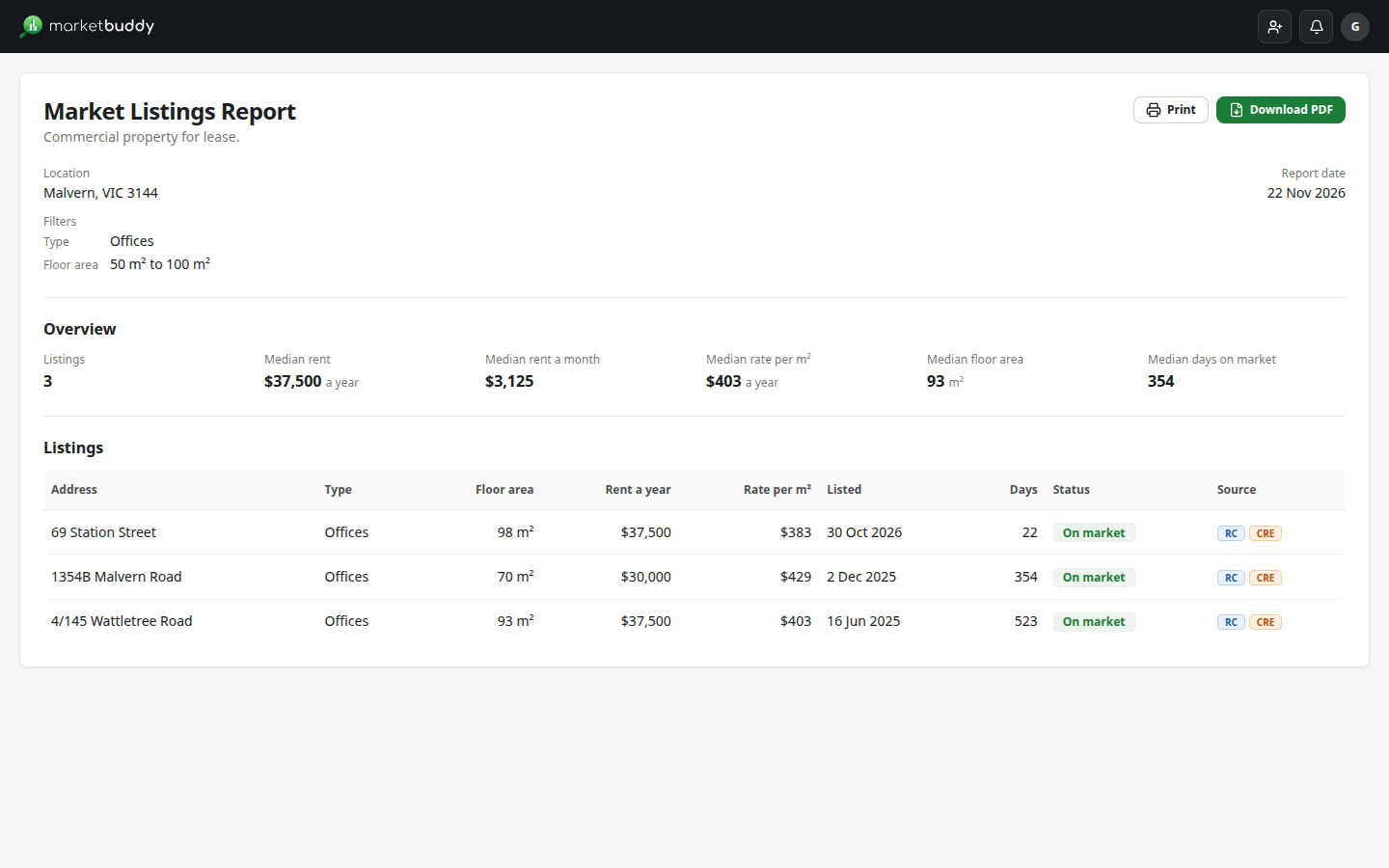
Print the Report or save it as a PDF
At the top right of the Report:
- Click Print to open the print window of your browser.
- Click Download PDF to save the Report as a PDF file. The PDF is an A4 page in landscape, and each page has a footer with its page number.
Download a sample Report as a PDF.